

Printer streaks can leave white gaps through text, dark lines across photos, or smears on sticker sheets. Learning how to fix printer streaks starts with identifying whether the problem comes from ink, toner, paper, or print settings. You can usually complete the first checks in about 15–30 minutes, although stubborn inkjet clogs may require a longer waiting period between cleaning attempts. This guide will help you identify the likely cause, choose the right maintenance step, and check the result before buying replacement supplies. You don’t need technical experience—just a few sheets of paper and your printer’s model number.
Is a Cartridge, Printhead, or Drum Causing the Streaks?
Before trying a cleaning cycle, check your printer’s supply status and print a built-in quality report. In an inkjet printer, streaks may come from a depleted cartridge or clogged printhead; in a laser printer, a faulty toner cartridge or damaged drum may be responsible. Cleaning can help with clogs or contamination, but it cannot repair a damaged component that needs replacing. Use your model’s troubleshooting guide to identify the likely cause, then follow the steps below for the appropriate fix.
Quick Answer
To fix printer streaks, print the printer’s built-in quality report on plain paper. For an inkjet, run a nozzle check and use the automatic printhead cleaning tool if the pattern has gaps. For a laser printer, follow the model’s toner and drum troubleshooting instructions. If the built-in report looks clean, check the paper settings and try another document before cleaning anything.
What You’ll Need
- A few sheets of clean, dry plain paper.
- One streaky printout for comparison.
- Your printer’s model number, usually on the front or a label.
- Access to its control panel or manufacturer’s printer software.
- The model’s user guide, available from the manufacturer’s support website.
- A soft, lint-free cloth only if the recommended cleaning procedure requires one.
Before cleaning inside a printer: Follow its shutdown and cooling instructions. Laser printers contain hot components; avoid sprays, solvents, and touching the drum surface unless the manufacturer specifically instructs otherwise. Brother
How to fix printer streaks: Step-by-Step Instructions
Start with the shared checks, then follow the branch for your printer. Inkjet printers use liquid ink in cartridges or refillable tanks; laser printers use powdered toner.
Start with these checks
- Identify your printer type.
Look up your model number in its user guide to confirm whether it is inkjet or laser. A laser printer does not have inkjet nozzles, so printhead cleaning instructions do not apply. - Load plain paper.
Use fresh paper supported by your printer for the initial test. This saves expensive photo or sticker sheets while you investigate. - Print a built-in quality report.
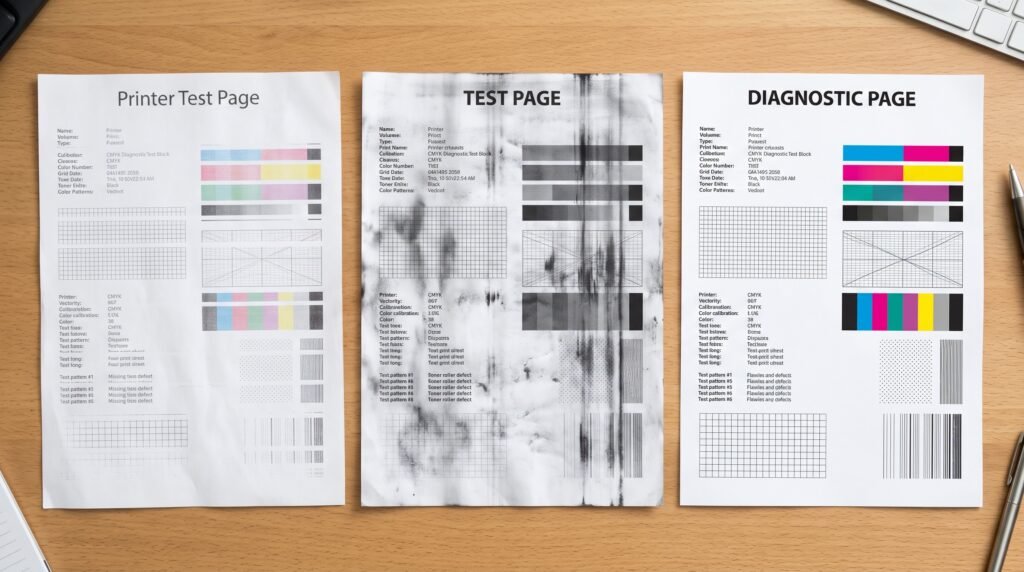
Use the printer’s own diagnostic report rather than copying a document. The report name and access method vary by model; your manual may call it a print quality report, test print, or nozzle check. - Inspect the report.
Look for missing lines, faded colors, or dark marks. A streaky built-in report points toward a printer or supply problem, while a clean report makes document settings or the printing application more likely suspects. Microsoft Support
For inkjet printers
- Check the ink supply.
View the estimated ink levels in the printer’s app or display, or inspect the tank windows as your manual directs. Level indicators are estimates, so a full-looking indicator does not rule out an ink delivery problem. - Replace a depleted ink cartridge if needed.
Follow the cartridge replacement instructions for your model. For a refillable printer, use its approved refill procedure instead; neither task should involve pouring ink directly into the printhead. - Print a nozzle check if your earlier report was not one.
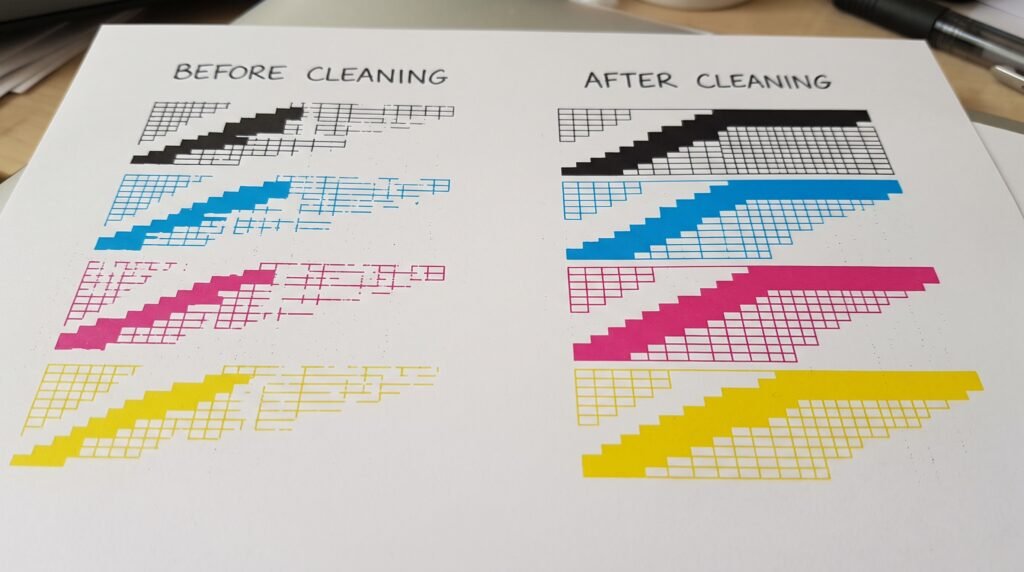
This pattern shows whether the tiny openings that release ink are printing consistently. Missing segments or faint sections indicate that cleaning may be needed. files.support.epson.com - Run one standard automatic cleaning cycle if the pattern has gaps.
Choose the model’s printhead cleaning function in its software or control panel. Labels vary, so use the manual’s instructions rather than assuming every printer has the same maintenance menu. - Print another nozzle check.
Compare it with the first pattern to see whether the missing segments have returned. Stop cleaning once the pattern is complete; additional cycles use ink without improving an already clean pattern. - Pause before further cleaning if the problem persists.
Follow your model’s specified cleaning limit and waiting period. For example, some Epson guides specify waiting at least 12 hours after up to three unsuccessful cleanings, but that timing is not universal. files.support.epson.com - Run printhead alignment if the nozzle pattern is complete but lines look doubled or offset.
Use your printer’s alignment routine and its on-screen directions. Alignment addresses positioning problems; it does not clear blocked nozzles. HP® Support
Ink cost note: Avoid jumping straight to deep cleaning or power cleaning. These are separate procedures on some models, and their prerequisites and waiting periods differ from standard cleaning.
For laser printers
- Check the toner status.
Read the supply information on the printer’s display or in its software. Low toner can help explain faded output, but a dark stripe alone does not prove that the cartridge is empty. - Follow the model’s recommended cleaning procedure for the matching defect.
Some Brother models have a sliding tab for cleaning a corona wire, a component involved in transferring toner correctly. This feature is not present on every laser printer, so use instructions for your exact model. - Return any corona-wire cleaning tab to its marked home position.
Do this if your printer uses that mechanism. Brother warns that leaving the tab out of position can itself cause a vertical stripe. help.brother-usa.com - Print a fresh internal test page.
Persistent streaks may require a toner cartridge or drum replacement, depending on the model and defect. Use the manufacturer’s troubleshooting sequence before purchasing either part.
Common Problems & Fixes
- Problem: White horizontal lines remain after cleaning. Fix: Check whether the nozzle pattern still has missing segments. If it is complete, investigate paper settings and alignment instead of continuing to clean; Epson lists these among its banding checks. files.support.epson.com
- Problem: Streaks appear only on photo or sticker paper. Fix: Confirm that the material supports your printer technology and that you are printing on the coated side. Choose the paper setting recommended by the material supplier and supported by the printer; “Plain Paper” is not suitable for every coating.
- Problem: Prints look faint in economy mode. Fix: Select a normal-quality setting. In Windows 11, go to Start > Settings > Bluetooth & devices > Printers & scanners > [your printer] > Printing preferences; in Windows 10, use Start > Settings > Devices > Printers & scanners > [your printer] > Manage > Printing preferences. Available quality controls depend on the installed driver. Microsoft Support
- Problem: Copies have lines, but computer prints look clean. Fix: Follow the scanner-glass cleaning instructions, particularly for the narrow glass strip used by the automatic document feeder. Dirt on that strip can produce a long line as the original moves past it. support.hp.com
- Problem: Only one file prints with streaks. Fix: Try a different document from the same application. If it prints correctly, inspect the original file or its export settings before replacing supplies.
Tips for Better Results
- Keep your first diagnostic page. Put later tests beside it so small improvements are easier to see. Mark the order in pencil rather than relying on memory.
- Change one thing between tests. Adjusting paper, quality, and maintenance settings together makes it difficult to identify which change helped.
- Use the diagnostic pattern instead of a full-page photo. A small missing segment is easier to spot in a structured pattern than in a detailed image.
- Save specialty paper for the final check. Once the plain-paper test is clean, print one photo or sticker sheet before starting the whole batch.
- Record the defect before contacting support. A photograph of the test pattern, your model number, and the cleaning steps already attempted give support a clearer starting point.
Frequently Asked Questions
<h2>Frequently Asked Questions</h2>
<h2>Get Back to Clean Prints</h2>
<p>Knowing how to fix printer streaks starts with a test page and the right maintenance procedure for your printer. Check the result after each change, and stop cleaning when the pattern is complete. Your next step is to print one page on your intended paper before restarting a larger job.</p>